Images
There is one way to write an image: Markdown’s . An
image standing alone as its own paragraph can be followed by a {…} attribute
line, making it a captioned figure, a zoom candidate, a numbered figure, or a
derivative processed by Hugo. The theme has no image shortcode.
Shortest form
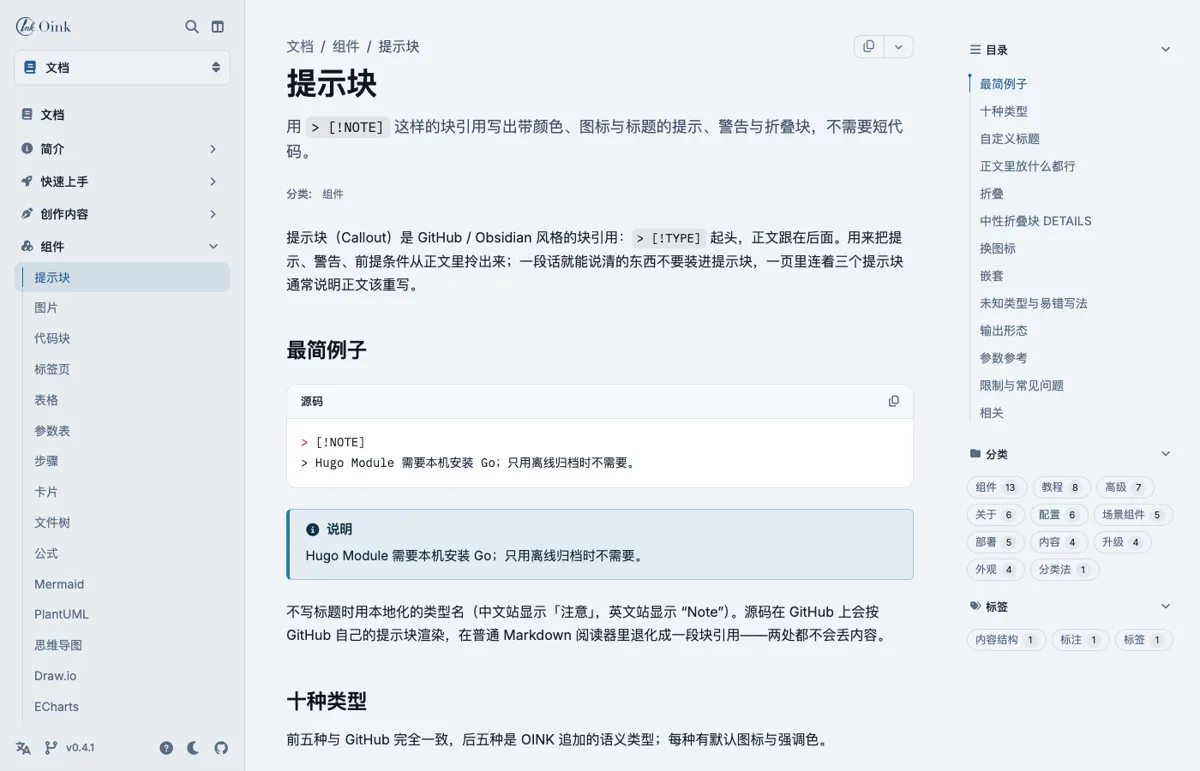
This image sits in the same directory as the page (a page bundle), so the theme
reads its intrinsic size and writes width/height, and the page does not
shift while loading; every image is lazy-loaded. Alternative text serves screen
readers and search engines and should always be written; an empty alt marks a
decorative image, which zoom skips.
Where images come from
Sources resolve in the following order, written the same way in each case:
| Placement | How it is written | Suited to |
|---|---|---|
Beside the page (a bundle: index.md plus the image) |
 |
A screenshot only this page uses; it travels with the page and is shared by translations |
Current section bundle (_index.md and its resources) |
 |
Images belonging to a section; use the resource path relative to that section |
Global resource assets/images/… |
 |
Images several pages share, especially ones needing processing (resize / crop) |
Static directory static/images/… |
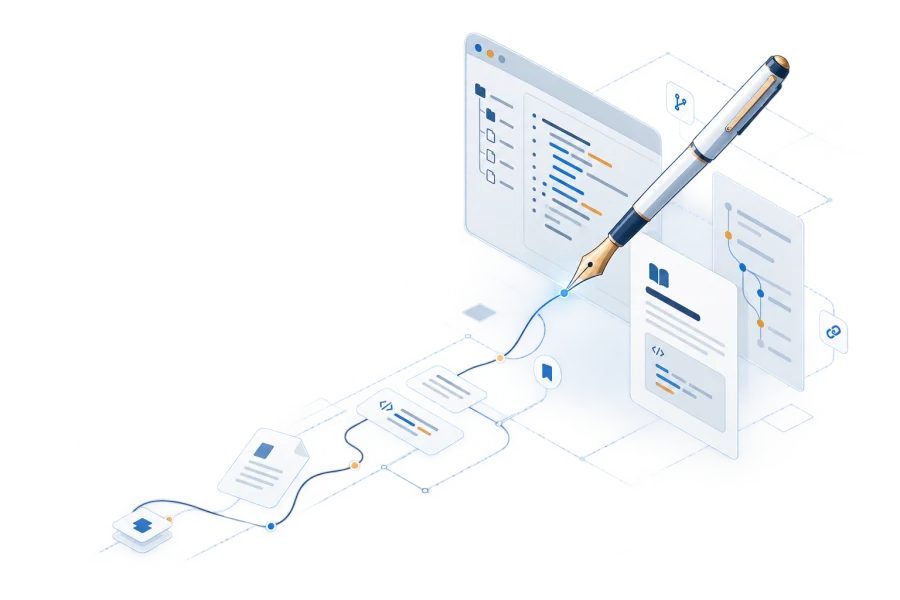 |
Large images and downloads that need no processing; supply width/height where the theme cannot measure them |
| Remote URL |  |
Rare: nothing is downloaded at build time and nothing can be processed |
A relative path is looked up as a page resource, a resource of the current section, and then a global resource; if none matches, it is emitted as a static path. The theme does not check whether a static path or a remote URL exists. When processing cannot resolve a processable resource, ordinary preview warns and leaves the image unprocessed; strict publishing rejects the warning.
Markdown alternative text takes precedence over resource metadata, including an
explicitly empty alt for a decorative image. Resource params.alt must be a
string; invalid metadata warns and is ignored, preserving the authored alt.
Strict publishing rejects that warning.
Inline versus block
An image inside a line of text is an inline image, rendered as one <img> and
unable to carry attributes; an image standing alone as its own paragraph is a
block image and can carry an attribute line.
This little one  sits inside a sentence — an inline image.
An inline image displays at its own size (50×32 here). An SVG with no intrinsic
size stretches to the container width when inlined, so an SVG belongs as a block
image with explicit width/height.
Block images depend on the site setting
markup.goldmark.parser.wrapStandAloneImageWithinParagraph: false (this site
has it; see Configuration). Without it, Goldmark
wraps a standalone image in <p> and the attribute line is treated as prose.
Captions
An attribute line with caption="…" renders the image as a <figure> plus a
<figcaption>. A caption is plain text and is not parsed as Markdown.

A Markdown "title" keeps its own meaning (a hover tooltip) and never becomes
the caption.
Size
width/height are positive integers overriding the resource’s own dimensions:
they give a static or remote image a placeholder box so the page does not shift,
or display a large image smaller (the browser scales it; the file is unchanged).

Processed images
Page resources and global resources can be processed by Hugo at build time:
command and options must both be given, the command is one of Fit,
Resize, Fill or Crop, and the options are Hugo’s image processing string.
The rendered src is the derivative; with zoom enabled the dialog opens the
original.
Static paths, remote URLs and SVG cannot be processed. Writing command for
one warns and leaves it unprocessed; strict publishing rejects the warning. The
options syntax (anchors, quality, format conversion, as
in 300x150 webp q80) is in
Hugo image processing.
Linked images
Two forms, for different purposes:
- No caption, and the image itself is the link: wrap it in a Markdown link,
[](href). - A captioned figure that is clickable as a whole: add
link="…"to the attribute line (which requirescaptionornum).
A linked image never zooms. Writing link= with no caption warns and drops the
link, pointing at [](…) instead; strict publishing rejects the warning.
Numbered figures
Numbered figures are for books and long manuals: add num to the attribute
line, with an optional #id. The number is a string the author writes (2-1,
3.4) and the theme never counts automatically; the caption gains a localized
“Figure 2-1” prefix, and #id defaults to fig-<num>. Reference it from the
prose with an ordinary link [Figure 2-1](#fig-2-1) or the xref shortcode; a
whole-book list of figures is in Books.
See Figure 2-1.
A numbered figure can be a processed image at the same time (num plus
command), and can carry a link.
Zoom
Image zoom is off by default. Once the site enables it, block images, figures
and gallery images that have alt text become clickable buttons that open the
full image in a native <dialog> (Esc closes it, focus returns where it was).
This page turns it on in its front matter, so every image above is clickable.
Since OINK 1.1, the preview action is kept in the button’s
accessible name, alongside the image description. It adds no helper text to
copied articles; the copied HTML retains images and authored captions for
rich-text editors. In v1.0.0, a hidden preview label can appear after pasting.
Until upgrading, setting image_zoom: false and rebuilding avoids that label.
Images that never zoom: inline images, decorative images with an empty alt,
linked images, and images marked data-no-zoom. The runtime loads only when the
page really has a candidate; print, Markdown and RSS have no dialog.
Light and dark images
The theme has no parameter for swapping an image by colour scheme. Where two
images are needed, give each a class and show one per scheme with
[data-bs-theme="dark"] in the site’s CSS:
Replace sidebar-light.webp and sidebar-dark.webp with your own light and
dark images. The theme sets data-bs-theme on html; the selectors above
show only the matching image. class is passed through for the site’s CSS.
Output
| Output | What appears |
|---|---|
| HTML | Inline <img>; block <img class="td-image">; with a caption or number, <figure class="td-figure"> plus <figcaption>; a zoom candidate carries data-td-image-zoom |
| As HTML, with the zoom controls removed | |
| Markdown |  and the attribute line as they stand |
| RSS | The image src becomes absolute; no zoom |
Parameter reference
The attribute line {…} (the line immediately after a block image):
style, on*, alt, title, src, and unsupported keys on the attribute
line warn and are ignored; strict publishing rejects the warning. Alt, title,
and src belong to the Markdown image itself.
Limits
- A caption holds no Markdown: every public string parameter is plain text, so rich explanation goes in a paragraph below the image.
titleis not a caption: thecinis a hover tooltip.- Processing applies to resources only: an image in
static/that needs processing moves to the page bundle orassets/. - Remote images are never downloaded at build time.
- Zoom has no drag, pan or previous / next; a set of related images uses a gallery.
Related
- Gallery — a set of images sharing one zoom dialog
- Books — the list of figures and
xrefcross-references - Brand and appearance — where the site logo and favicon go
- Cards — images on cards