Write a book with numbers and references
7 Write a book with numbers and references
Documentation is consulted; a book is read in order. Its readers expect what
print taught them: numbered chapters, “Table 3-1” they can cite, references
that keep working when chapters move, and the whole text as one document.
OINK provides all of that for any tree marked type: book, while every chapter
stays an ordinary Markdown page. The Starter’s content/book/ is already one;
this chapter turns it into the Acme DB Operations Handbook, and the numbered
items below are live examples in this book.
The book root
The root page declares the type, passes it to every page below, and asks for
the print output that produces the whole-book document. The Starter’s root
already does all three; give it the handbook’s title:
Front matter outputs replaces the site’s list for this page, so it names
every format the root keeps. sidebar_headings: 3 lists each chapter’s
headings under it in the sidebar, which helps in long chapters.
Chapters
Each chapter is a page with a number and a position. Replace the Starter’s four sample chapters with the handbook’s own:
book_number is shown exactly as written, in the sidebar, the contents and the
print view. The theme never derives it from directory order, so 3, A and
B are all valid, and moving a file never renumbers a chapter that readers have
already cited. book_status: draft labels an unfinished chapter without
unpublishing it; with params.ui.book_draft_banner: true the chapter also
opens with a notice, the way this book’s draft chapters would.
Number what readers cite
A figure, a table, an equation or a code example gets its number from an
attribute line directly under it, with no blank line between: num= is the
number as you want it printed and caption= a plain-text caption. In the
handbook these would be numbered after chapter 3; here they carry this
chapter’s number, 7.
A table
| Sustained ingest | CPU cores | Memory | Disk for 90 days |
|---|---|---|---|
| 100,000 points/s | 4 | 8 GB | 1.2 TB |
| 1,000,000 points/s | 8 | 32 GB | 12 TB |
| 3,000,000 points/s | 16 | 64 GB | 37 TB |
An equation
The disk column comes from the formula of Chapter 5, now numbered:
A code example
A fence takes num and caption in its own attributes:
A figure
An image in a paragraph of its own takes the same attribute line:
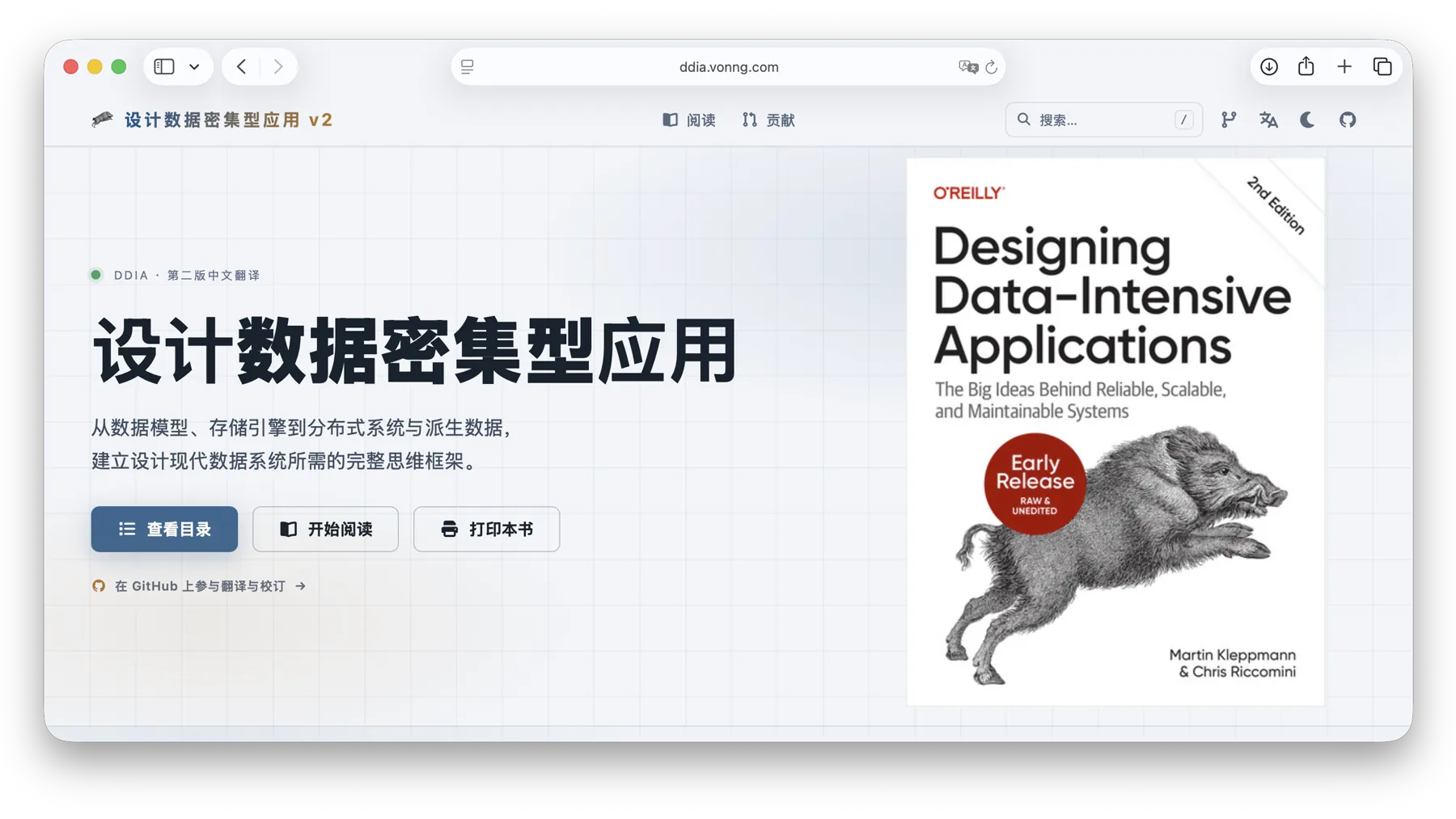
Each kind counts separately, so Table 7-1, Equation 7-1, Example 7-1 and Figure
7-1 coexist. Without an #id, the anchor is the kind and the number, such as
#tbl-7-1. Add an explicit one, {#tbl-server-sizes num="7-1" …}, when other
sites will link to the target, so a renumbering does not break their links.
Keep the attribute line touching its block: a formatter that moves it turns a
numbered figure back into a plain image without any warning.
Cross-reference with xref
A hand-written “see Table 7-1” goes stale when the table is renumbered. The
xref shortcode builds the label, the number and the link from the kind and
the number, in the reader’s language:
Size the server from Table 7-1, which applies Equation 7-1 to 16-byte points with a compression ratio of 10. Chapter 1 opened with Example 1-1.
page= points at another chapter, looked up in the current language, so the
Chinese edition of this sentence links to the Chinese chapter without a /zh/
prefix in the source. anchor= is needed when the target declared its own ID,
as Example 1-1 did. A reference may come before its target, in the same chapter
or a later one.
Generated indexes
The root page, or a dedicated contents page, collects everything the chapters registered:
book-toc lists chapters at depth=1, adds nested sections at 2 and each
page’s headings at 3. This book’s root page carries all
five; the items numbered in this chapter are listed there beside the prompts
from Part I.
Print the whole book
Because the root has the print output, /_print/book/ holds the whole book
as one HTML document: a cover, the contents, and every chapter in reading
order. Every xref becomes a jump within the document, so the references keep
working on paper. Open this book’s print view and save it as a
PDF from the browser’s print dialog. For EPUB or a paginated PDF, the theme
repository ships two scripts that work from the build output; see
Books.
Check your work
- The handbook’s chapters appear in the sidebar with their numbers, and the draft chapter carries its label.
- Each numbered item shows its label, such as “Table 3-1”, and its caption.
- Every
xreflink lands on its target, including one into another chapter. /_print/book/contains every chapter, with the contents and indexes linking inside the document.